

The internet has transformed the way people communicate, work, shop, learn, and manage their daily activities. From social media platforms and online banking to mobile applications and cloud storage, digital technology has become an essential part of modern life.
However, every online activity can involve sharing personal information. Websites may collect browsing data, applications may request access to device features, and online services may store information associated with your accounts.
This makes online privacy an important topic for everyone who uses the internet.
Understanding how personal information is collected, stored, and shared can help you make informed decisions and develop safer digital habits.
Whether you are a beginner or an experienced internet user, this comprehensive guide explains what online privacy means, why it matters, common privacy risks, and 15 practical ways to protect your personal information.
At TechNexa, our goal is to make technology easier to understand through helpful guides, cybersecurity information, and practical digital safety tips.
Online Privacy vs. Online Security: Understanding the Difference
What Is Online Privacy?
Online privacy refers to the ability to understand and manage how your personal information is collected, used, stored, and shared while using websites, applications, digital platforms, and internet-connected devices.
Whenever you create an account, browse a website, download an application, or interact with an online service, information about your activity may be processed.
Depending on the service and its settings, this information may include:
- Your name and email address.
- Phone numbers and contact information.
- Location information.
- Browsing history and website preferences.
- Search activity.
- Social media interactions.
- Device information.
- Account preferences.
- Photos, documents, and other uploaded files.
Not every website collects the same information. The type and amount of data collected depend on the service, its functionality, applicable privacy settings, and its privacy policy.
Understanding online privacy helps users make more informed decisions about what information they share and which services they trust.
Why Is Online Privacy Important?
Online privacy is important because personal information can reveal details about your identity, preferences, activities, and digital behavior.
Protecting this information helps users maintain greater control over their digital presence.
1. Protect Your Digital Identity
Your digital identity consists of information associated with your online accounts and activities.
This may include usernames, email addresses, profile information, and other identifying details.
Managing this information carefully can help reduce unnecessary exposure.
2. Reduce Unnecessary Data Sharing
Some applications request permissions or information that may not be essential for their primary function.
Reviewing these requests helps you decide whether sharing particular information is appropriate.
3. Improve Account Protection
Online privacy and account security work together.
Strong passwords, multifactor authentication, and careful account management can help reduce the risk of unauthorized access.
4. Understand Online Tracking
Many websites use cookies and other technologies to remember preferences, measure performance, or personalize content.
Learning about these technologies helps users understand how their browsing activity may be processed.
5. Maintain Control Over Your Digital Footprint
Your digital footprint includes information and activity associated with your online presence.
Thoughtful sharing, regular privacy reviews, and responsible account management can help you maintain greater control over that footprint.
How Does Online Privacy Work?
Online privacy involves several interconnected technologies, policies, and user choices.
Understanding these elements makes it easier to recognize where personal information may be collected and how it can be managed.
Cookies and Website Tracking
Cookies are small data files that websites can store in your browser.
They may help websites remember login sessions, shopping cart contents, language preferences, or other settings.
Some cookies and tracking technologies are also used for analytics and advertising.
You can review cookie settings through your browser or the website’s privacy controls.
Application Permissions
Mobile applications may request access to features such as:
- Camera
- Microphone
- Location
- Contacts
- Photos
- Files
- Notifications
These permissions can support useful features, but users should review them carefully.
For example, a navigation application may need location access to provide directions, while a simple calculator generally does not need access to your contacts.
Privacy Policies
A privacy policy explains how a website or application handles information.
It may describe what information is collected, why it is collected, how it is shared, and how users can manage certain privacy choices.
Reading the relevant sections can help you understand a service before creating an account.
Account Privacy Settings
Many online platforms provide controls for managing profile visibility, advertising preferences, data sharing, and account information.
These settings vary by service and may change over time.
Reviewing them regularly helps you understand the options available.
15 Essential Online Privacy Tips to Protect Your Personal Information
Improving online privacy does not require advanced technical knowledge.
The following practices can help you build a more responsible approach to everyday internet use.
1. Create Strong and Unique Passwords
Passwords are one of the primary ways online services protect access to user accounts.
Using the same password across multiple websites can create additional risk if one service experiences a data breach.
Create a unique password for every important account.
A strong password should generally be long, difficult to guess, and different from passwords used elsewhere.
Consider using a reputable password manager to generate and store unique passwords.
Practical tip: Prioritize your email account because it may be used to reset passwords for other services.
2. Enable Two-Factor Authentication
Two-factor authentication, commonly called 2FA, adds an additional verification step during login.
Depending on the service, this may involve an authentication application, security key, or verification code.
Even if someone obtains your password, an additional verification requirement can provide another layer of account protection.
Enable multifactor authentication on important accounts whenever available.
3. Review Your Application Permissions
Applications may request access to information or device features to provide particular services.
However, permission requests should be relevant to the application’s purpose.
For example:
| Application Type | Potentially Relevant Permission |
|---|---|
| Navigation app | Location |
| Video calling app | Camera and microphone |
| Photo editing app | Photos |
| Messaging app | Contacts, depending on features |
| Calculator app | Usually minimal permissions |
Review permissions through your device settings.
Remove permissions that are unnecessary or no longer required.
4. Limit Personal Information on Social Media
Social media platforms encourage users to share photos, updates, interests, and personal experiences.
Before publishing information, consider who may be able to view it.
Avoid publicly displaying unnecessary sensitive information, including private contact details, home addresses, or personal documents.
Review your profile visibility and audience settings periodically.
5. Understand Website Cookies and Tracking
Cookies and tracking technologies support various website functions.
Some help remember preferences, while others may be used for analytics or advertising.
You can review available cookie controls through your browser and individual website settings.
Remember that blocking certain cookies may affect website functionality.
6. Keep Your Browser and Operating System Updated
Software updates often include security improvements and fixes for known vulnerabilities.
Outdated browsers and operating systems may lack important protections.
Enable automatic updates when available and install updates from official sources.
Keep your:
- Operating system updated.
- Web browser updated.
- Mobile applications updated.
- Security software updated.
- Router firmware updated when applicable.
Regular updates support a safer digital environment.
7. Recognize Phishing Emails and Suspicious Links
Phishing is a technique in which deceptive messages attempt to obtain sensitive information or encourage unsafe actions.
These messages may imitate banks, technology companies, delivery services, or other organizations.
Common warning signs include:
- Unexpected requests for personal information.
- Unfamiliar website addresses.
- Urgent account-verification messages.
- Unexpected attachments.
- Messages containing unusual payment requests.
If you receive a suspicious message, visit the organization’s official website directly instead of following an unfamiliar link.
8. Use Secure Websites
Before entering sensitive information, check whether the website uses HTTPS.
HTTPS helps protect information exchanged between your browser and the website through encryption.
However, HTTPS alone does not guarantee that a website is trustworthy.
Check the website address carefully and verify that you are using the official service.
9. Secure Your Home Wi-Fi Network
Your home Wi-Fi network connects computers, smartphones, smart TVs, and other internet-connected devices.
Use a strong router administrator password and modern Wi-Fi security settings supported by your equipment.
Change default administrator credentials and install router firmware updates when available.
Avoid sharing your Wi-Fi password publicly.
10. Be Careful When Using Public Wi-Fi
Public Wi-Fi is available in locations such as airports, hotels, libraries, and coffee shops.
Although convenient, public networks may not provide the same level of control as a trusted home network.
When using public Wi-Fi:
- Verify the network name with the establishment.
- Avoid entering sensitive information on unfamiliar websites.
- Use HTTPS websites.
- Disable automatic connections to unknown networks.
- Keep your device software updated.
- Disconnect when you no longer need the network.
For sensitive activities, consider using a trusted connection and appropriate security protections.
11. Manage Your Browser Privacy Settings
Modern browsers provide controls for managing cookies, website permissions, browsing data, and certain tracking preferences.
Explore your browser’s privacy and security settings.
Depending on the browser, you may be able to:
- Clear browsing data.
- Manage cookies.
- Control website permissions.
- Review saved passwords.
- Limit certain tracking technologies.
- Manage location access.
Private browsing modes can limit certain information saved locally on your device, but they do not make you completely anonymous online.
12. Review Your Social Media Account Settings
Social media privacy settings help determine how your profile and content are shared.
Review options related to:
- Profile visibility.
- Post audiences.
- Contact information.
- Location sharing.
- Search visibility.
- Connected applications.
- Advertising preferences.
Remove connected applications you no longer use.
Check these settings after major platform updates because available controls may change.
13. Avoid Unnecessary Information Sharing
Not every website or application needs every piece of personal information.
Before submitting a form, ask yourself:
- Is this information necessary?
- Is the service trustworthy?
- Why is the information being requested?
- Is there a privacy notice explaining its use?
- Can I complete the task without sharing unnecessary details?
Providing only relevant information can help reduce unnecessary data exposure.
14. Review Account Activity Regularly
Many services provide account activity pages showing recent sign-ins, connected devices, or active sessions.
Review these records periodically.
If you notice unfamiliar activity, use the service’s official account-security options to review sessions, update your password, and strengthen authentication.
Also review recovery email addresses and phone numbers to ensure they are current.
15. Back Up Important Personal Data
Backups help preserve important information if a device is lost, damaged, or affected by a technical problem.
Consider maintaining backups of important documents, photographs, and other files.
Use reputable backup services or storage devices and protect access with appropriate security settings.
Remember that cloud storage also involves privacy considerations, so review the service’s account and sharing settings.
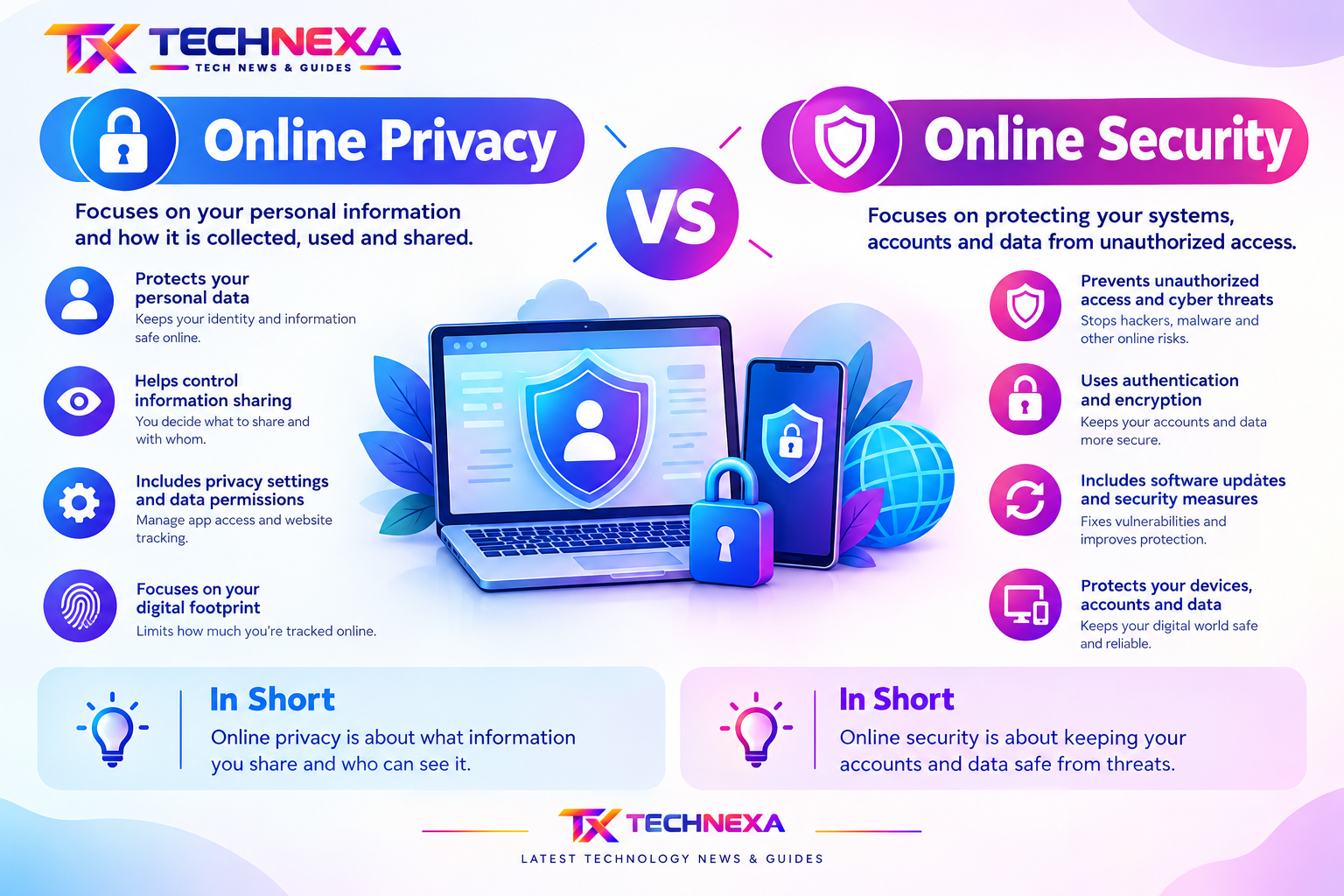
Online Privacy vs. Online Security: Understanding the Difference
Online privacy and online security are closely related, but they address different aspects of digital protection.
| Online Privacy | Online Security |
|---|---|
| Focuses on personal information and its use | Focuses on protecting systems, accounts, and data |
| Concerns data collection and sharing | Concerns unauthorized access and digital threats |
| Includes privacy settings and permissions | Includes authentication and software updates |
| Helps users manage their digital footprint | Helps protect devices and information |
For example, an online service may use encryption and authentication to protect an account while collecting certain information according to its privacy policy.
This is why both online privacy and cybersecurity matter.
Common Online Privacy Mistakes to Avoid
Even experienced internet users can overlook important privacy practices.
Reusing the Same Password
Using one password for multiple accounts can increase exposure if one account is compromised.
Use unique passwords instead.
Ignoring Application Permissions
Granting every permission without reviewing its purpose can lead to unnecessary information sharing.
Check permissions regularly.
Sharing Too Much Personal Information
Publicly sharing sensitive information can make it easier for others to learn details about your identity and activities.
Think carefully before publishing personal information.
Ignoring Software Updates
Delaying updates may leave devices without important security fixes.
Install updates from official sources.
Assuming Private Browsing Provides Complete Anonymity
Private browsing primarily affects certain information stored locally in your browser.
It does not automatically prevent websites or network services from observing online activity.
Clicking Unexpected Links
Unexpected messages may contain misleading links or attachments.
Verify the sender and visit official websites directly when necessary.
How to Improve Online Privacy on Different Devices
Different devices provide different privacy controls.
Here are some practical areas to review.
Online Privacy on Windows Computers
Windows users can review privacy settings related to application permissions, location access, diagnostics, and account information.
Recommended practices include:
- Keep Windows updated.
- Review application permissions.
- Use a strong account password.
- Enable available account-security features.
- Review browser privacy settings.
- Install applications from trusted sources.
Online Privacy on Android Devices
Android provides permission controls that allow users to manage application access to device features.
Review permissions for location, camera, microphone, contacts, and photos.
Keep applications updated through trusted sources and remove applications you no longer use.
Online Privacy on iPhone
iPhone users can review application permissions and privacy controls through device settings.
Check location access, camera and microphone permissions, tracking preferences, and application privacy information.
Keep iOS and installed applications updated.
Online Privacy on Web Browsers
Your browser is an important part of your digital privacy experience.
Review its privacy settings, manage cookies, clear unnecessary browsing data, and check website permissions.
Use browser extensions carefully and install them only from trusted sources.
Online Privacy Checklist for Everyday Internet Users
Use this checklist to review your current privacy habits.
| Privacy Practice | Status |
|---|---|
| Use unique passwords for important accounts | Review |
| Enable two-factor authentication | Review |
| Check application permissions | Review |
| Update operating system and browser | Review |
| Review social media privacy settings | Review |
| Avoid suspicious links | Review |
| Secure home Wi-Fi | Review |
| Check website privacy policies | Review |
| Review account activity | Review |
| Back up important information | Review |
Completing these checks regularly can help you maintain better awareness of your digital privacy.
Frequently Asked Questions About Online Privacy
1. What is online privacy in simple words?
Online privacy means understanding and managing how your personal information is collected, used, stored, and shared when you use websites, applications, and internet services.
2. Why is online privacy important?
Online privacy helps users maintain control over personal information, understand data-sharing practices, manage their digital footprint, and make informed decisions about online services.
3. How can I protect my personal information online?
Use unique passwords, enable multifactor authentication, review application permissions, update your devices, avoid suspicious links, and limit unnecessary information sharing.
4. Does private browsing protect my online privacy completely?
No. Private browsing generally limits certain browsing information saved locally on your device. Websites and network services may still be able to observe some online activity.
5. What is the difference between privacy and security?
Privacy concerns how personal information is collected and used. Security concerns protecting accounts, systems, and data against unauthorized access and other digital threats.
6. Are cookies dangerous?
Cookies are commonly used for website functionality, preferences, analytics, and advertising. Their purpose depends on the website and the type of cookie.
Review cookie settings and privacy notices to understand how a service uses them.
7. Can applications access my personal information?
Applications can access certain device features or information when permissions and operating-system rules allow it.
Review permissions regularly and grant only those that are appropriate for the application’s functionality.
8. How often should I review privacy settings?
Review important privacy settings periodically and whenever you install a new application, create an account, or notice significant changes to a service.
9. Is public Wi-Fi safe for browsing?
Public Wi-Fi can be convenient, but users should take precautions. Verify network names, use HTTPS websites, avoid unfamiliar login pages, and keep devices updated.
10. What is a digital footprint?
A digital footprint is the information and activity associated with your presence online. It may include posts, comments, account information, and other digital interactions.
11. Do strong passwords improve online privacy?
Strong, unique passwords help protect access to accounts that contain personal information. Combining them with multifactor authentication provides additional account protection.
12. How can beginners improve online privacy?
Beginners can start by using unique passwords, enabling two-factor authentication, reviewing social media settings, updating devices, and checking application permissions.
Final Thoughts: Make Online Privacy Part of Your Digital Routine
Online privacy is not a one-time task. It is an ongoing part of responsible internet use.
Every time you create an account, install an application, browse a website, or share information online, you make decisions that can affect your digital footprint.
By following these 15 online privacy tips, you can develop better habits for managing personal information, protecting accounts, understanding tracking technologies, and using digital services more thoughtfully.
You do not need to change everything at once. Start with your most important accounts, review your device permissions, and gradually improve your privacy settings.
At TechNexa, we believe that understanding technology helps people make smarter digital decisions.
Explore more technology news, cybersecurity information, and practical how-to guides at TechNexa.blog.
For official information about Maine legislation, readers can visit the Maine Legislature’s website to review bills, legislative documents, and updateshttps://legislature.maine.gov/
For more practical online safety advice, read our guide on Device Security https://technexa.blog/device-security/
