

Laptop and Computer: Complete Guide to Features, Performance, Security, and Maintenance
Laptop and Computer: Complete Guide to Features, Performance, Security, and Maintenance
A laptop and computer are essential tools for modern life. People use them for education, office work, online communication, entertainment, creative projects, and business activities. From attending online classes to editing videos, managing documents, and browsing the internet, computers support many everyday tasks.
However, choosing and maintaining the right device can be confusing, especially for beginners. Different processors, memory options, storage types, operating systems, and display features can make buying decisions difficult.
This complete guide explains how a laptop and computer work, what features matter, how to improve performance, and how to protect your device. Whether you are buying your first computer or trying to maintain an existing one, these practical tips can help you make informed decisions.
Table of Contents
- What Is a Laptop and Computer?
- Laptop vs. Desktop Computer
- Main Components of a Computer
- How to Choose the Right Laptop and Computer
- Understanding Processor Performance
- RAM and Multitasking
- SSD vs. HDD Storage
- Display and Graphics Features
- Operating Systems Explained
- How to Improve Computer Performance
- Laptop Battery Care
- Computer Security and Privacy
- Maintenance Tips for Long-Term Use
- Common Laptop and Computer Problems
- Useful Accessories
- Laptop and Computer Buying Checklist
- Frequently Asked Questions
- Final Thoughts
1. What Is a Laptop and Computer?
A computer is an electronic device that receives data, processes information, stores files, and performs tasks according to instructions. Computers are available in several forms, including desktop computers, laptops, tablets, and compact mini PCs.
A laptop is a portable computer with a built-in screen, keyboard, touchpad, battery, and internal hardware. It allows users to work from different locations without needing a separate monitor and keyboard.
A desktop computer usually consists of a separate system unit, monitor, keyboard, and mouse. It is commonly used in offices, homes, schools, gaming setups, and professional workstations.
Both types can perform many of the same tasks. The right choice depends on your budget, work requirements, portability needs, and preferred setup.
2. Laptop vs. Desktop Computer : Key Differences
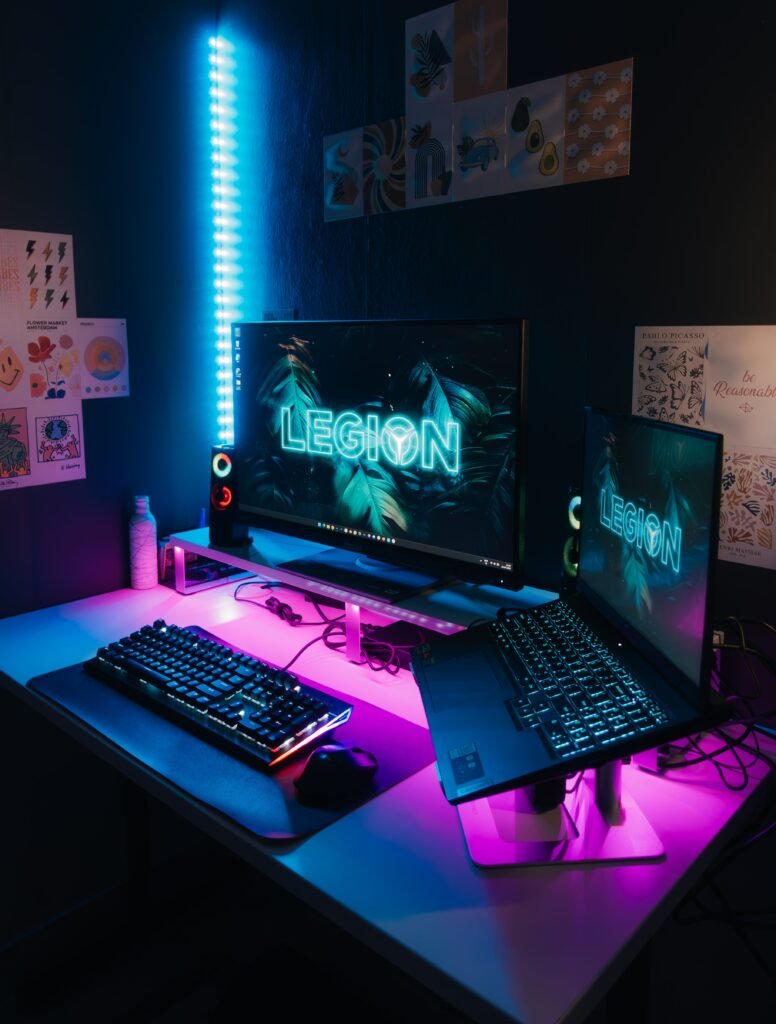
Laptops and desktop computers have different advantages. A laptop is designed for portability, while a desktop computer often provides more flexibility for upgrading individual components.Laptops and desktop computers offer different features for everyday computing. Laptops are portable and convenient for students, travelers, and remote workers, while desktop computers provide larger screens, flexible upgrades, and powerful hardware options. Before choosing a computer, users should compare portability, performance, storage, and budget to find a suitable device for their needs.
| Feature | Laptop | Desktop Computer |
|---|---|---|
| Portability | Easy to carry | Usually stays in one place |
| Built-in display | Yes | Usually separate monitor |
| Battery | Usually included | Usually requires external power |
| Upgrade options | Often limited | Usually more flexible |
| Desk space | Compact | Requires more space |
| Typical use | Study, travel, office work | Office, gaming, workstation use |
When Should You Choose a Laptop?
A laptop may suit you if you:
- Attend classes or meetings in different locations.
- Need to work while travelling.
- Prefer a compact setup.
- Want a built-in screen, keyboard, and battery.
- Need one device for study, work, and everyday tasks.
When Should You Choose a Desktop Computer?
A desktop may suit you if you:
- Work mainly at one desk.
- Need a larger display.
- Want more component upgrade options.
- Use demanding applications.
- Prefer a fixed workstation for office or home use.
Neither device is automatically suitable for everyone. Compare the specifications with the tasks you actually perform.
3. Main Components of a Computer
Understanding computer hardware makes it easier to compare devices and troubleshoot common problems.
Central Processing Unit (CPU)
The CPU, or processor, executes instructions and performs calculations. It plays an important role in application responsiveness, multitasking, and overall system performance.
When comparing processors, consider the model generation, core count, performance requirements, and power efficiency—not only the advertised clock speed.
Random Access Memory (RAM)
RAM temporarily stores data that the computer is actively using. More RAM can help a device handle multiple applications and browser tabs smoothly.
For example, a computer with limited memory may slow down when several large applications are open simultaneously.
Storage Drive
Storage holds the operating system, applications, documents, photos, videos, and other files.
The two common storage technologies are:
- SSD: Generally faster and more responsive.
- HDD: Often offers more storage capacity at a lower cost, but is typically slower.
Motherboard
The motherboard connects the computer’s major components. It allows the processor, memory, storage, and other hardware to communicate.
Graphics Processing Unit (GPU)
The GPU processes graphics and visual information. Integrated graphics are commonly suitable for everyday tasks, while dedicated graphics hardware can benefit some gaming, design, video-editing, and 3D applications.
Cooling System
Computers generate heat while operating. Fans, heat sinks, and other cooling components help maintain safe operating temperatures.
Blocked vents or excessive dust can interfere with cooling and may contribute to performance problems.
4. How to Choose the Right Laptop and Computer
Before buying a laptop and computer, identify your primary use case. A device for browsing and schoolwork may have different requirements from one used for video editing or software development.
For Students
Students commonly need a device for:
- Online classes
- Research and web browsing
- Documents and presentations
- Video meetings
- Educational applications
A practical student laptop should have reliable performance, a comfortable keyboard, suitable battery life, and enough storage for coursework.
For Office Work
Office users may prioritize:
- Smooth document editing
- Video conferencing
- Reliable Wi-Fi
- Comfortable typing
- Security and backup features
For Creative Work
Graphic design, video editing, and other creative tasks may require stronger processing capability, sufficient RAM, a suitable display, and graphics hardware compatible with the software.
Check the recommended system requirements for the applications you plan to use.
For Gaming
Gaming requirements vary considerably. Review the game’s official minimum and recommended specifications, including its processor, graphics, memory, and storage requirements.
5. Understanding Processor Performance
The processor affects how quickly a computer handles instructions. However, processor performance depends on several factors, including architecture, generation, core count, thermal design, and power limits.
What Are Processor Cores?
A core is a processing unit within a CPU. Some processors have multiple cores that can work on different tasks.
More cores can help with workloads designed for parallel processing, but core count alone does not determine real-world performance.
What Is Clock Speed?
Clock speed describes how many cycles a processor performs per second. It is commonly measured in gigahertz (GHz).
A higher clock speed does not automatically mean one processor is faster than another. Processor design and workload also matter.
Check Application Requirements
If you use specialized software, check its official hardware recommendations before purchasing a laptop or desktop. This helps avoid paying for features you do not need—or choosing hardware that cannot comfortably run your applications.
6. RAM and Multitasking
RAM helps your laptop and computer keep active applications and data readily available.
For example, you might have a browser, document editor, video meeting, and music application open at the same time. The amount of RAM available can affect how smoothly the computer handles this workload.
Signs Your Computer May Need More Memory
You may notice:
- Applications becoming slow when many programs are open.
- Browser tabs reloading frequently.
- Delays when switching between applications.
- Frequent use of virtual memory.
These symptoms can also have other causes, such as limited storage space or background processes. Check system resource usage before deciding to upgrade.
Can RAM Be Upgraded?
Some desktop computers and laptops allow memory upgrades. Others have memory soldered directly to the motherboard.
Before purchasing RAM, confirm the device’s supported memory type, maximum capacity, and available slots using the manufacturer’s documentation.
7. SSD vs. HDD Storage
Storage affects how quickly your laptop and computer starts, opens applications, and transfers files.
Solid-State Drive (SSD)
An SSD uses flash memory and has no spinning disks. It generally provides faster access to data than a traditional HDD.
Common benefits include:
- Faster startup times
- Quicker application loading
- Improved file access
- Quiet operation
- Better resistance to movement-related impacts than mechanical drives
Hard Disk Drive (HDD)
An HDD stores data on rotating magnetic disks. It can be useful when large storage capacity is needed at a lower cost.
However, it is generally slower than an SSD, particularly for random data access.
Which Storage Should You Choose?
For many everyday users, an SSD can make a laptop or computer feel more responsive. If you need substantial space for large media collections, an additional HDD or external drive may be useful.
Always keep a separate backup of important files. A storage drive can fail regardless of its type.
8. Display and Graphics Features
The display is one of the main parts of your everyday computer experience. Consider screen size, resolution, brightness, viewing angles, and intended use.
Screen Resolution
Resolution refers to the number of pixels displayed on the screen. Higher resolution can provide more workspace and sharper details, depending on screen size and viewing distance.
Common resolutions include:
- HD
- Full HD
- QHD
- 4K
Refresh Rate
Refresh rate is measured in hertz (Hz) and describes how often the display updates each second. A higher refresh rate can make movement appear smoother in supported applications and games.
Integrated and Dedicated Graphics
Integrated graphics are built into or included with the processor package and are often suitable for everyday computing.
Dedicated graphics hardware has its own graphics processing resources and may benefit demanding creative applications, 3D workloads, and gaming.
Choose graphics hardware based on software requirements rather than specifications alone.
9. Operating Systems Explained
An operating system manages computer hardware and provides the environment where applications run.
Windows
Windows is widely used for personal computers, education, office work, gaming, and business applications. Its software compatibility and device support make it common across many laptop and desktop models.
macOS
macOS is Apple’s operating system for Mac computers. It is used for productivity, creative applications, development, and everyday computing.
Linux
Linux is an operating system family available in many distributions. It is used for programming, servers, education, development, and general desktop computing.
Before choosing an operating system, check whether your essential applications, printers, accessories, and other devices are supported.
10. How to Improve Computer Performance
If your laptop and computer feels slow, try these basic maintenance steps before considering a replacement.
1. Restart Your Computer
Restarting can close stuck processes and clear temporary system states. Save your work before restarting.
2. Close Unused Applications
Applications running in the background can use memory and processor resources. Close programs you are not using.
3. Review Startup Applications
Some applications launch automatically when Windows starts. Disable unnecessary startup apps through the operating system’s settings or Task Manager.
Avoid disabling software you do not recognize if you are unsure what it does.
4. Keep Enough Storage Space Available
A nearly full system drive can interfere with updates and everyday tasks. Remove files you no longer need, uninstall unused applications, or move personal files to suitable storage.
Back up important files before deleting them.
5. Install Updates
Operating system and application updates can include security fixes, bug corrections, and compatibility improvements.
Use official update settings and manufacturer websites.
6. Check Resource Usage
On Windows, Task Manager can show which applications are using CPU, memory, disk, and network resources.
If one application consistently consumes unusually high resources, check whether it needs an update or whether its settings can be adjusted.
11. Laptop Battery Care
Laptop batteries gradually lose capacity through normal use and aging. Good everyday habits can help you manage battery life.
Adjust Screen Brightness
The display can use a significant amount of power. Lower brightness to a comfortable level when appropriate.
Use Power-Saving Settings
Operating systems often include battery-saving modes that reduce background activity or adjust performance to extend runtime.
Avoid Excessive Heat
High temperatures can affect battery health. Use your laptop on a firm surface that allows ventilation, and keep air vents unobstructed.
Follow Manufacturer Charging Guidance
Battery charging features vary by manufacturer and model. Check your laptop’s official support documentation for battery health settings and charging recommendations.
Monitor Battery Health
If your laptop’s battery life has changed noticeably, use the manufacturer’s diagnostic tools or operating system battery information to review its condition.
12. Computer Security and Privacy
Protecting your laptop and computer is important because it may contain personal documents, schoolwork, photos, saved accounts, and other private information.
Use a Strong Sign-In Method
Use a unique password or supported sign-in method. Avoid sharing your password with other people.
Keep Software Updated
Security updates help address known vulnerabilities. Install updates through official system settings and trusted application sources.
Enable Built-In Security Features
Modern operating systems include security features such as firewall protection, security notifications, and malware defenses. Review the available settings and keep protection enabled.
Be Careful With Downloads
Download applications from official websites or trusted app stores. Avoid unexpected attachments and suspicious download buttons.
Use Multi-Factor Authentication
Where available, enable multi-factor authentication for important accounts. This adds another verification step beyond a password.
Back Up Important Files
Keep copies of important files in a separate location, such as an external drive or reputable cloud storage service. Make sure you can access your backups when needed.
For more practical protection advice, read the TechNexa Windows Security guide and link it to your published Windows Security article.
13. Maintenance Tips for Long-Term Use
Regular maintenance can help your computer remain reliable.
Keep Vents Clear
Place laptops on firm surfaces and avoid blocking cooling vents. Do not use a device in a way that traps heat around its cooling system.
Clean Carefully
Turn off and unplug the device before cleaning its exterior. Use a soft, suitable cloth and follow the manufacturer’s cleaning guidance.
Avoid spraying liquid directly onto the computer.
Organize Files
Use clearly named folders for documents, photos, projects, and downloads. Remove duplicate or unnecessary files only after checking that they are not important.
Check Storage Health
Use manufacturer diagnostics or operating system tools to review drive health when available. Back up important data if you notice repeated errors or unusual drive behavior.
Protect Your Device During Transport
Use a suitable laptop bag or sleeve. Avoid placing heavy objects on top of a laptop, and protect it from spills and extreme temperatures.
14. Common Laptop and Computer Problems
Computer Is Running Slowly
Possible causes include limited memory, too many startup applications, low storage space, background tasks, or outdated software.
Start by checking Task Manager or the system’s resource monitor.
Laptop Is Not Charging
Check the power outlet, adapter connection, and charging cable. If the charger or battery appears damaged, stop using it and consult the manufacturer or a qualified repair professional.
Wi-Fi Is Not Working
Check whether Wi-Fi is enabled, restart the router if appropriate, and review the computer’s network settings. If other devices also cannot connect, the issue may involve the network rather than the computer.
Computer Is Overheating
Make sure vents are clear and the device is placed on a suitable surface. If overheating continues or the computer shuts down unexpectedly, seek qualified technical support.
Storage Is Almost Full
Review large files, downloads, and unused applications. Back up important content before deleting or moving it.
Keyboard or Touchpad Is Not Responding
Restart the computer and check whether the issue occurs in multiple applications. For external devices, inspect the connection or battery. If the problem continues, consult the device manufacturer’s troubleshooting guide.
15. Useful Laptop and Computer Accessories
Accessories can improve comfort, connectivity, and productivity.
| Accessory | Common Use |
|---|---|
| External mouse | Navigation and everyday work |
| Laptop stand | Raises screen position and supports desk setup |
| External keyboard | Alternative typing setup |
| USB hub | Adds compatible ports |
| External storage drive | File backup and transfer |
| Headset | Online classes and meetings |
| Webcam | Video calls |
| Surge protector | Helps protect compatible equipment from certain power disturbances |
Check compatibility before buying accessories. Port types, operating system support, power requirements, and device dimensions can vary.
16. Laptop and Computer Buying Checklist
Before purchasing, review the following points:
- Identify your main tasks.
- Set a realistic budget.
- Check processor model and generation.
- Confirm RAM capacity and upgrade options.
- Choose suitable SSD or HDD storage.
- Review screen size and resolution.
- Check battery information for laptops.
- Confirm operating system compatibility.
- Review available ports and wireless connectivity.
- Check warranty and service availability.
- Compare the manufacturer’s official specifications.
- Confirm that required applications will run on the device.
Avoid choosing a computer based only on one specification or a promotional description. Compare the complete configuration with your actual needs.
17. Frequently Asked Questions
What is the difference between a laptop and a computer?
A laptop is a type of computer designed for portability, with a built-in display, keyboard, touchpad, and battery. The term computer also includes desktops and other computing devices.
Is an SSD better than an HDD for everyday use?
An SSD generally provides faster startup and application-loading times. An HDD may offer more storage capacity for the price. The suitable option depends on your performance and storage needs.
How much RAM does a laptop need?
The appropriate amount depends on the operating system and applications you use. Check the recommended requirements for your software and consider how many applications you normally run together.
Why is my laptop running slowly?
Common causes include limited memory, low storage space, unnecessary startup applications, background processes, or software problems. Check resource usage and available storage before deciding on an upgrade.
Can I upgrade my laptop?
Some laptops support RAM or storage upgrades, while others have components that are not user-upgradable. Check your exact model’s manufacturer documentation before purchasing parts or opening the device.
How can I protect my computer from malware?
Keep the operating system and applications updated, use built-in security features, download software from trusted sources, and be cautious with unexpected links and attachments.
Should I shut down my computer every day?
You can shut down your computer when you have finished using it, or use sleep mode when you plan to resume work soon. Restarting periodically can also help resolve some temporary software issues.
How often should I clean my laptop?
Clean the exterior when needed and follow the manufacturer’s guidance for vents, keyboard, and display. Internal cleaning may require professional service, particularly if the device is difficult to open.
18. Final Thoughts
A laptop and computer can support learning, productivity, communication, creativity, and entertainment. Choosing the right device begins with understanding your daily tasks and comparing the hardware, operating system, display, storage, and connectivity features that matter to you.
Regular software updates, sensible file organization, careful handling, and reliable backups can also help maintain a computer over time.
Whether you are purchasing a new laptop, upgrading a desktop, or improving an existing device, focus on practical requirements rather than specifications you may never use. A well-matched computer and consistent maintenance routine can make everyday computing more convenient and reliable.
Before purchasing a laptop or desktop computer, it is important to check the operating system requirements and hardware compatibility. Microsoft provides official information about Windows 11 system requirements, supported processors, memory, and storage. Visit the official Windows 11 specifications page to learn morehttps://www.microsoft.com/en-us/windows/windows-11-specifications
